%20--%3e%3cg%3e%3cg%20id='Layer_1'%3e%3cg%3e%3cpath%20class='cls-1'%20d='M331.8,77.9l-1.9.3c-9.6-16.7-23.6-24.4-42.2-24.4-36.7,0-59.8,29.8-59.8,69.3s22.6,69.3,58.4,69.3,33.7-8,43.6-25l1.9.3c-.5,8-.5,13.5-.5,21.5h29.8V56.7h-29.8c0,7.7,0,13.8.5,21.2ZM294.4,165.3c-22.6,0-36.4-18.1-36.4-42.2s13.8-42.5,36.4-42.5,37.5,17.5,37.5,42.2-14.3,42.5-37.5,42.5Z'/%3e%3cpolygon%20class='cls-1'%20points='442.9%20153.9%20406.5%2056.7%20374.1%2056.7%20427.3%20186.5%20402.8%20245.3%20435.2%20245.3%20511.7%2056.7%20479.6%2056.7%20442.9%20153.9'/%3e%3cpath%20class='cls-1'%20d='M591.4,2.3h-66.7v186.9h31.6v-72.5h34c36.9,0,61.6-21.8,61.6-57.6s-24.7-56.8-60.6-56.8ZM588.3,89.7h-31.9V30.1h31.6c21.2,0,32.1,12.2,32.1,29.8s-11.4,29.8-31.9,29.8Z'/%3e%3cpath%20class='cls-1'%20d='M757.1,77.9l-1.9.3c-9.6-16.7-23.6-24.4-42.2-24.4-36.7,0-59.8,29.8-59.8,69.3s22.6,69.3,58.4,69.3,33.7-8,43.6-25l1.9.3c-.5,8-.5,13.5-.5,21.5h29.8V56.7h-29.8c0,7.7,0,13.8.5,21.2ZM719.7,165.3c-22.6,0-36.4-18.1-36.4-42.2s13.8-42.5,36.4-42.5,37.5,17.5,37.5,42.2-14.3,42.5-37.5,42.5Z'/%3e%3cpolygon%20class='cls-1'%20points='936.5%2056.7%20904.7%2056.7%20868.5%20154.7%20832.4%2056.7%20800.5%2056.7%20800.5%2057.2%20853.7%20189.5%20883.1%20189.5%20936.5%2057.2%20936.5%2056.7'/%3e%3cpath%20class='cls-1'%20d='M1036,133.7c-2.4,19.1-15.9,32.9-35.3,32.9s-25.5-7.4-31.9-19.1l95.4-43.6c-7.2-31.9-31.1-51.5-64.8-51.5s-65.6,29.2-65.6,70.1,26.3,70.7,65.6,70.7,63-23.4,66.1-59.5h-29.5ZM962.9,122.8c.3-25.8,15.1-44.1,37.5-44.1s23.1,5.8,29.5,16.2l-66.7,30.3c0-.8-.3-1.6-.3-2.4Z'/%3e%3cpath%20class='cls-1'%20d='M182.1,112.3c0,19.9-2.2,34-6.5,42-1.5,2.8-3.3,4.7-5.2,5.8-2,1.1-4.7,1.7-8.1,1.7s-9.8-2.3-15.6-6.7c-5.7-4.4-11.5-10.6-17.2-18.4,3.4-5.7,6.5-11.6,9.3-17.6,3.1-6.5,5.8-13.3,8.1-20,1.8-5,3.6-11,5.3-17.9,1.7-7,2.5-13.9,2.5-20.4.2-6.7-.9-13.2-3.1-19.1-2.3-5.9-5.6-11.1-9.8-15.3-7.9-7.9-18.2-11.9-30.6-11.9s-22.3,4-30.6,11.9c-4.2,4.2-7.5,9.4-9.6,15.3-2.2,5.9-3.3,12.2-3.3,18.9s.9,13.5,2.5,20.5c1.7,6.9,3.4,12.9,5.2,17.8,2.3,6.8,5.1,13.6,8.2,20.1,2.8,5.9,5.9,11.8,9.2,17.6-5.7,7.8-11.5,14-17.2,18.4-5.8,4.5-11.1,6.7-15.6,6.7s-6.1-.6-8.1-1.7c-2-1.1-3.7-3.1-5.2-5.8-4.3-8.4-6.5-22.5-6.5-42.1V2.3H9.8v110c0,12.7.8,23.8,2.5,32.8,1.7,9.2,4.3,17.1,7.7,23.6,4.3,8,10,14,16.8,17.8,6.5,3.9,14.4,5.8,23.4,5.8s11-1,16-2.9c4.9-1.9,9.7-4.3,14.1-7.3,4.4-2.9,8.6-6.4,12.6-10.3,3-2.9,5.8-6,8.4-9,2.7,3,5.5,6.1,8.4,9,3.9,3.9,8.1,7.4,12.6,10.3,4.5,3,9.3,5.4,14.2,7.3,5.1,1.9,10.4,2.9,15.8,2.9,9,0,16.9-2,23.6-5.8,6.9-3.9,12.5-9.9,16.6-17.8,3.6-6.5,6.2-14.4,7.8-23.6,1.6-9.1,2.4-20.1,2.4-32.8V2.3h-30.5v110ZM124.2,60.7c0,2.9-.4,6.3-1.1,10.1-.7,3.8-1.8,8-3.1,12.4-1.4,4.5-3,9.1-4.9,13.8h0c-1.2,2.9-2.5,5.9-3.9,8.8-1.4-2.9-2.7-5.9-3.9-8.8-1.9-4.7-3.6-9.4-4.9-13.8-1.4-4.4-2.4-8.6-3.1-12.4-.7-3.8-1.1-7.2-1.1-10.1,0-5.7,1.4-9.9,4.1-12.7,1.9-2,4.8-3,8.9-3s7,1,8.9,3.1c2.7,2.7,4,6.9,4,12.6Z'/%3e%3c/g%3e%3c/g%3e%3c/g%3e%3c/svg%3e)
Congratulations on taking the next step toward your career goals. WayPave connects job seekers with employers quickly and efficiently — whether you're looking for your first job, a career change, or your next great opportunity.
This guide walks you through the essentials so you can start applying in just a few minutes.
Grab WayPave from your preferred app store. Once installed, open it and follow the on-screen prompts to sign up.
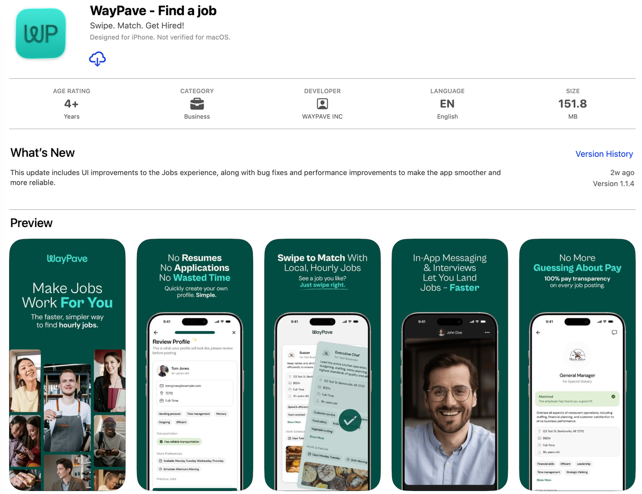
Your profile is one of the most important parts of the app. Employers use it to decide whether you're a fit for a role — the more complete it is, the more accurate your recommendations will be.
What to fill in
- Personal information
- Contact information
- Employment history
- Education
- Skills
- Certifications
- Job preferences
WayPave offers two easy ways to discover opportunities.
Option 1 — New For You
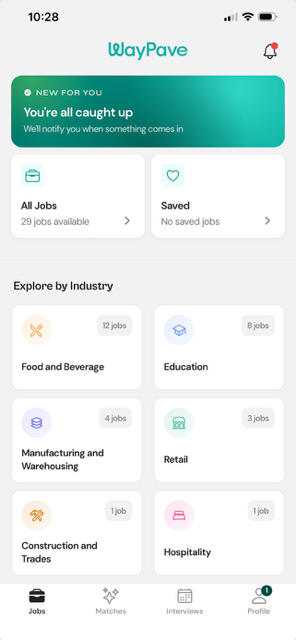
Tap New For You to see jobs matched to your profile. Recommendations are based on your:
- Experience
- Skills
- Interests
- Preferred location
Option 2 — Explore by Industry
Prefer to browse? Pick an industry that interests you:
- Food & Beverage
- Education
- Manufacturing & Warehousing
- Retail
- Hospitality
- Construction & Trades
- Healthcare
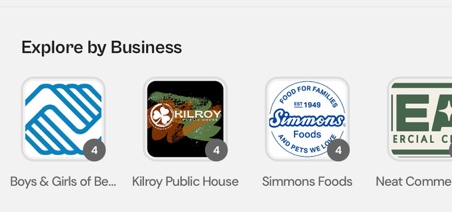
Have a specific employer in mind? Scroll to the Explore by Business section and tap any company logo to see the roles they're hiring for right now.
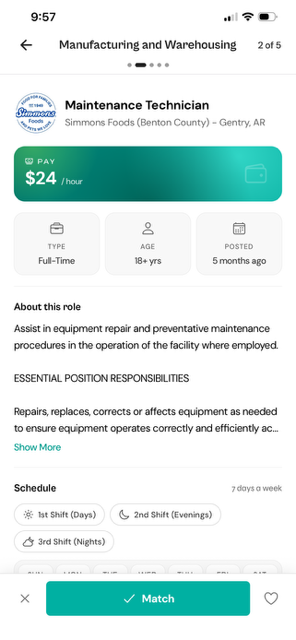
Not ready to apply? Save jobs and come back to them anytime.
- Open a job posting.
- Tap the heart icon at the bottom of the job description.
- The job is added to your Saved Jobs list, accessible anytime from the Home page.
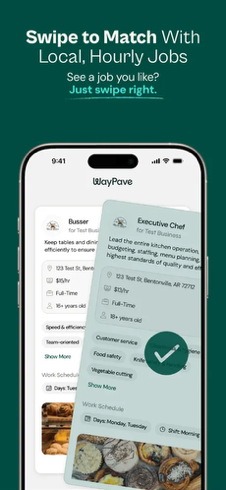
In your New For You feed, a quick swipe is all it takes. Swipe right on a job you're excited about to tell the employer you're interested, or swipe left to pass for now.
If the employer is interested in your profile too, you'll get a match notification — and the conversation begins from there.
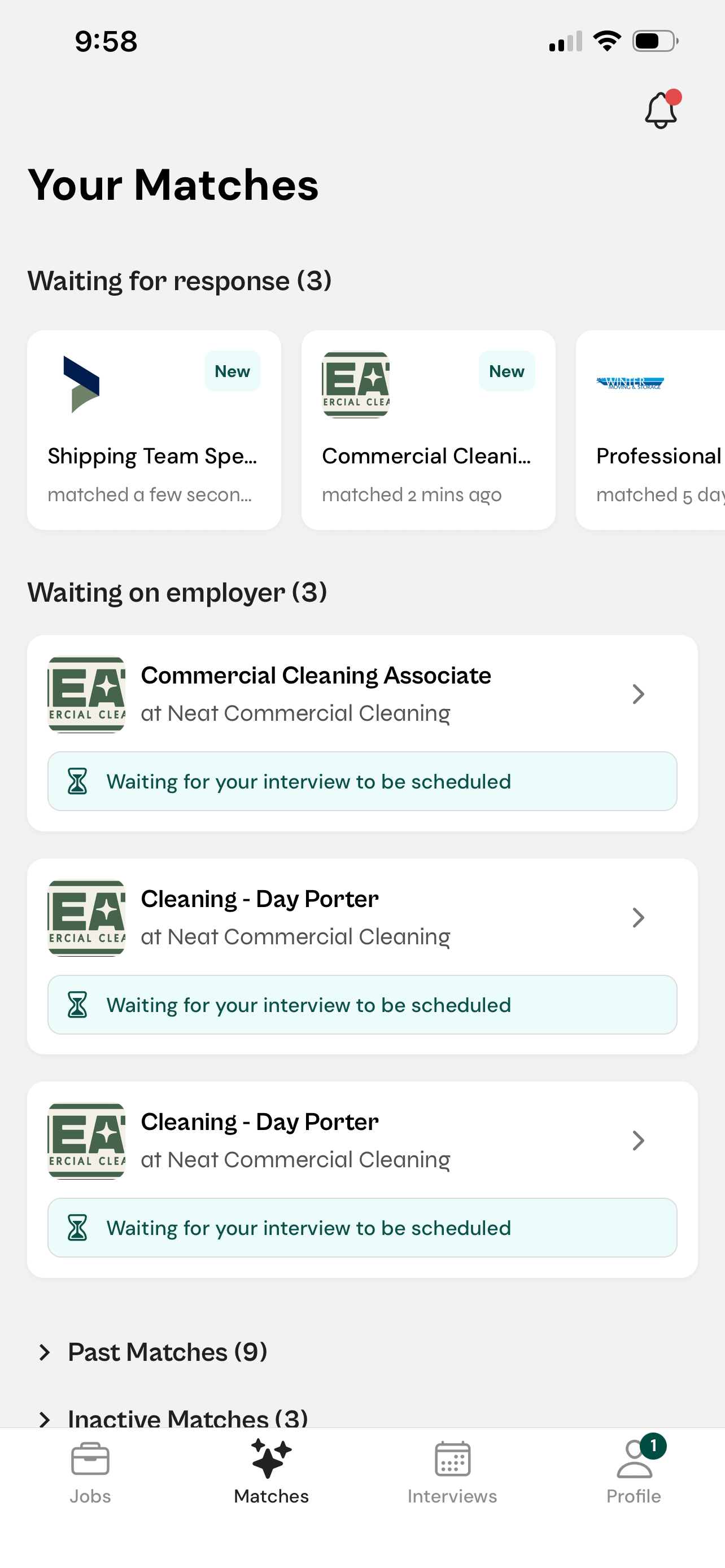
Use the navigation bar at the bottom of the app to track your progress.
| Tab | What it shows |
|---|---|
| Jobs | Browse available jobs |
| Matches | View employer matches |
| Interviews | Review interview information |
| Profile | Update your personal information |
Helpful tips
Complete your profile
A complete profile significantly increases your visibility to employers.
Check the app daily
New positions are added frequently — small daily check-ins pay off.
Enable notifications
Get alerts for new job opportunities, employer matches, and interview invitations.
Keep your info current
Update your profile whenever your resume, employment, skills, or certifications change.
Frequently asked questions
Why am I not seeing many jobs?
Can I save jobs without applying?
How do employers know I'm interested?
Where can I view interview information?
Need more help?
Contact your recruiter or reach out to WayPave support — we're happy to help.